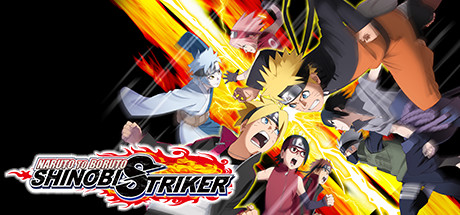
A Shinobi Striker modded save from our store is not a new account and not a file you install yourself. It is applied to the PSN profile you already play on, so your PlayStation name, friends list and trophies stay exactly where they are while your Shinobi Striker progress is replaced with the save's contents.
This walkthrough covers every step from checkout to your first match, starting with the requirement that trips up more orders than anything else: PlayStation Plus has to be active on the very account that receives the save.
Before anything else: PS Plus on the same account
Both product pages say it plainly: PlayStation orders require active PlayStation Plus on the same account being modified, and shared PS Plus from other accounts will not work. That second half matters on PS5, where console sharing lets other users on the console play online using one member's subscription. For this order, that does not count. The membership has to be on the PSN account you name at checkout.
Check it before you pay. Your console's account settings, or PlayStation's website, will show whether that account has an active membership and when it renews. The listing asks for an active membership without naming a tier, so make sure it will not lapse while the order is in progress. The other hard requirement is that Shinobi Striker itself is on the account, because the store sells the save file only, not the game.
The order, step by step
| Stage | What happens | What you do |
|---|---|---|
| 1. Choose | Pick the unlock-all save or the Jiraiya save, $50 each | Compare the itemised listings |
| 2. Checkout | You state your platform, PS4 or PS5 | Add contact handles if email is not your best channel |
| 3. Contact | The store emails you about the order | Reply through that thread |
| 4. Sign-in | A technician signs in to your PSN account | Be reachable for any two-step code |
| 5. Apply | The save is applied directly to your profile | Keep Shinobi Striker closed |
| 6. Confirm | You receive confirmation that it is done | Launch the game and check your profile |
Step two is where most of the useful detail goes. The product pages note that you can add social media usernames or a text-only phone number at checkout, so if you rarely check email, give a channel you actually watch. Step four is the reason the safety steps matter; our account safety checklist covers passwords, backup codes and wallet settings in detail.
What changes on your profile, and what does not
The PSN side of your account does not change. Your online ID, friends, messages, trophies and purchases all live on the account rather than in the Shinobi Striker save, so a transfer leaves them alone. What changes is the game's own save data: masters, jutsu, wardrobe, scrolls and, on the Jiraiya save, the profile counters now match the listing you bought.
Because your existing Shinobi Striker save is being replaced, back it up to USB before ordering, and if your current avatar's face, name or outfits matter to you, ask support how they are handled before checkout. It is a simple question, and asking it first is better than discovering the answer on your first login.
Your first launch after confirmation
Once the confirmation arrives, start the game and go through a short checklist before you queue. Open a loadout and scroll the ninjutsu list to make sure the full set is there. Visit the costume menu at the Inn and check the wardrobe. On the unlock-all save, stop at Tenten's Ninja Tools Shop to see your scroll stack; on the Jiraiya save, open your profile to check the counters and look for the modded outfit sets.
Then test any perk you care about somewhere quiet. A VR mission is ideal: equip the outfit or loadout, confirm the infinite effect behaves the way you expect, and only then decide how you want to use it. Our infinite jutsu guide lists which outfit triggers which effect.
If something does not look right
Contact support before you play online, using the same thread as your order, and be specific: "the jutsu list is complete but the scroll count looks normal" is far easier to act on than "it didn't work". Do not try to fix it by restoring old backups or re-syncing from the cloud first, because that can overwrite the new save and make the problem harder to see.
If you decide you want your old profile back, that is what the USB backup is for. Copy it back from Saved Data management on your console and you are exactly where you started.
Ready to start
Both saves are listed on the Shinobi Striker hub. The unlock-all save suits most players, while the Jiraiya save adds maxed profile stats. If you play on both a PS4 and a PS5, read the PS4 and PS5 guide first so the save ends up on the console you actually use.
Frequently Asked Questions
Do I really need PS Plus for a modded save transfer?
Yes. It is the one condition the product page spells out in full: an active membership, on the account receiving the save, not borrowed from another user on the console. Confirm it before checkout so the order is not held up.
Does any PS Plus tier work?
The product pages ask for an active membership and do not name a tier. If you are unsure whether yours qualifies, ask support before checkout rather than after.
How long does the transfer take?
The listing does not promise a fixed time. After purchase the store contacts you by email, and the confirmation message tells you when the save has been applied. Keep the game closed until then.
Will I lose my trophies or friends list?
No. Those belong to your PSN account, not to the Shinobi Striker save. Only the game's own save data is replaced with the contents of the save you bought.
Can I have the save put on a second account?
Each order is applied to the PSN account you name, and that account needs its own copy of the game and its own PS Plus. If you want it on another account, that is a separate order.