
To change the email on your Discord account, open User Settings, stay on the My Account tab and press Edit next to your current email, then follow the pop-up and confirm the new address from its inbox. On mobile, the same option sits under Settings, then Account. The one hard requirement is access to the inbox of your current email, because Discord's support team cannot change an account's email for you. Below are both versions of the steps, the errors people hit most, and what changes once the new address is live.
We verified these steps and error messages against Discord's Help Center articles on changing your email, undoing an email change, login and email troubleshooting, resending verification emails and data requests, in November 2026.
What You Need Before Changing It
Changing your email is quick, but Discord treats it as a sensitive action and builds in checks. Having these ready avoids a half-finished change.
- Access to the current inbox. Discord says that to update your email you need access to the inbox of the address on file. This is the step that blocks most people.
- Both inboxes within reach. Discord sends a verification email to the new address and, once the change is confirmed, a notice to the old one.
- Your 2FA method if it is on. Keep your authenticator or backup codes nearby. Our Discord 2FA guide explains backup codes if you never saved them.
- A new address not used by another Discord account. Each email can belong to only one account, and Discord rejects addresses that are already registered.
If you no longer have the old inbox at all, the normal flow will not work and support cannot do it for you. Read our Discord account recovery guide instead; it covers the few options that exist when the old mailbox is gone, such as using a device that is still logged in.
Changing Your Email on Desktop or Browser
These steps apply to the Windows, macOS and Linux apps as well as discord.com in a browser.
- Click the gear icon next to your username at the bottom left to open User Settings.
- Make sure the My Account tab is selected.
- Press Edit next to your account's current email address.
- Follow the instructions in the pop-up to enter and confirm the new address, then press Done.
- Open the inbox of the new address and use the verification email Discord sends.
The new address is not fully in use until you verify it, so do not close the new inbox and forget about it. If nothing arrives within a few minutes, check spam and promotions folders before trying again.
Changing Your Email on iPhone or Android
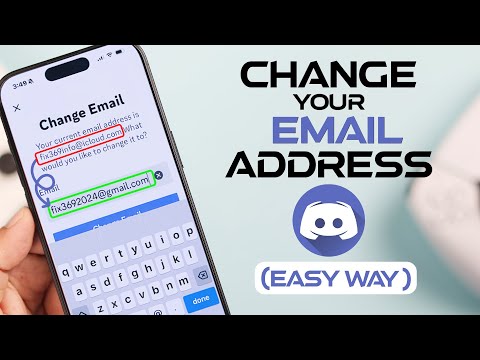
The mobile flow reaches the same setting through a slightly different path. Discord's article lays it out like this:

- Tap your avatar in the bottom right corner to open your profile.
- Tap the gear icon in the top right corner.
- Tap Account.
- Tap your current email address.
- Follow the on-screen instructions and tap Change Email when finished.
- Check the inbox of the new address for the verification email.
Whichever device you use, the email belongs to the account rather than the device, so there is nothing to repeat on your other phones or computers. The next time you sign in anywhere, use the new address.
The Safety Email Sent to Your Old Address
After a change is confirmed, Discord sends an extra notification to the original address. It includes a Start Account Recovery button that can revert the change within 48 hours. Discord adds this so that if someone else changed your email, the real owner can take the account back.
If you made the change yourself, you can simply ignore that message. Just do not share the link with anyone, and never trust a "recovery" link whose address does not begin with https://discord.com/wasntme/, which Discord says is the only genuine format. If you did not make the change, act within those 48 hours; the full process, including what the recovery page resets, is in our recovery guide linked above.
The 48-hour window cuts both ways. Once it has passed, the old address loses that undo power for good, and Discord's support team cannot issue a fresh recovery link. That is one more reason to keep the old mailbox open for a couple of days after a deliberate change, in case anything looks wrong.
Fixing Common Email Change Errors
Discord's login and email troubleshooting guide lists the errors that show up most during an email change, along with the fix for each.
- Invalid Email. Wait 24 hours before trying the same address again. If it still fails and you have no other address to use, contact support at dis.gd/contact.
- Email is already registered. That address already belongs to another Discord account. Use a different one, or contact support if you are certain it is not tied to any account.
- You are changing your e-mail too fast. Try again later. Wait 24 hours, then try again. Contact support if the error continues after a full day.
- Email does not exist. This appears at login, not during a change, and means the address you typed is not tied to any Discord account.
If the verification email never shows up, Discord suggests allowlisting notifications@discord.com, support@discord.com and noreply@discord.com, then using the Resend Verification Email banner at the top of the My Account tab on desktop, or the Verify banner under Account on mobile. Support cannot send verification emails manually.
A related trap: the "Email is already registered" message sometimes means you made a second account with your preferred address years ago. If that older account is still alive, you would have to change its email or delete it before the address frees up. Deletion takes 15 days to complete, as explained in our Discord account deletion guide.
What Changes After the Switch
Once verified, the new address becomes your login and the destination for Discord's account mail. A few side effects are easy to miss:
- Pending data requests. Discord sends a data package link to whatever email was on the account when you requested it. Changing your email afterward does not redirect that link, so finish or collect any pending request first.
- Email notification settings. Preferences for marketing and notification emails are managed under User Settings, then Notifications, and are worth checking after a switch.
- Username and profile. Your email is private and separate from your public identity. Changing it does nothing to your username or display name; for that, see our guide to changing your Discord username.
- Linked services. Accounts you linked under Connections, such as Xbox, Spotify or Steam, are managed separately in the Connections tab. Discord says its support team cannot remove a connection for you, so our guide to Discord account connections is the place to review them.
Finally, treat the new mailbox as part of your Discord security. Whoever controls it can reset your password, so give it a strong, unique password and two-factor protection of its own.
Picking an Address You Will Still Have in Five Years
Most people change their Discord email because the old one is about to disappear: a school account at graduation, a work address when changing jobs, or an old free mailbox they stopped checking. The best time to move is while the old inbox still works, because once it is gone you lose the ability to make this change yourself.
When choosing the replacement, favor a personal address you control directly rather than one an employer or school can shut down. Avoid a throwaway or alias service you might forget about, and protect the mailbox with its own unique password and two-factor sign-in. Discord's whole recovery system routes through this inbox, from password resets to the 48-hour undo link, so it deserves the same care as your bank login.
It also pays to add a backup way in. Discord accounts can hold one phone number at a time, and a number on the account lets you log in with the phone number instead of an email address, then reset the password by SMS if you ever need to. Discord notes there is a waiting period before a removed number can be used on an account again, so add the number you intend to keep rather than swapping numbers around.
A verified email matters for more than logging in. Discord requires a verified email address before you can request a copy of your data, and the download link goes to whatever address is on the account at the time of the request. If you plan to request your data, verify the new address first and then submit the request, so the link lands somewhere you can open.
Accounts, Emails and Ownership
The email on file is, in practice, the proof of who owns a Discord account, which is why the change process guards it so closely. The store's Discord section includes account listings from third-party sellers, and many listing titles mention the email setup. Discord's Terms of Service, however, say users agree not to license, sell, lend or transfer their account or username without Discord's prior written approval.
Whatever account you use, the safeguard described above applies to it as well: for 48 hours after any email change, the previous address can trigger a full recovery and take the account back.
Frequently Asked Questions
Can I change my Discord email without access to the old email?
Not through the normal flow. Discord says you need access to the inbox of your current email to update it, and its support team cannot change the address for you.
How often can I change my Discord email?
Discord's troubleshooting guide does not give a set number, but changing too often triggers a "changing your e-mail too fast" error. The documented fix is to wait 24 hours and try again.
Why does Discord say my email is already registered?
The address is already attached to another Discord account. Use a different address, or free it up by changing the email on that other account first.
I did not change my Discord email. What do I do?
Open the notice Discord sent to your original address and press Start Account Recovery within 48 hours. The link must begin with https://discord.com/wasntme/.
Can Discord support change my email for me?
No. Discord's Help Center states that the support team cannot change the email address tied to an account. The change has to be made in User Settings by someone with access to the current inbox.
Why did my Discord verification email not arrive?
Check spam, then allowlist notifications@discord.com, support@discord.com and noreply@discord.com and resend it from the banner in My Account. Trying from another device or over mobile data can also help.