
The best Warzone settings for Season 1 start with a 105 field of view, motion blur and depth of field turned off, low controller dead zones and an audio mix that keeps effects loud and music silent, which is the baseline Dexerto published on 6 November 2026 for the Modern Warfare 4 integration. Below we walk through controller, console graphics, PC display and audio options, plus the new Season 1 settings Raven added, as of November 2026.
We checked this against Dexerto's Season 1 controller, console and PC settings guides, Raven Software's Season 1 patch notes and 7 November hotfix, and Activision's official How to Play guide, in November 2026.
New Season 1 Options Worth Knowing First
Before copying anyone's numbers, look at what Season 1 itself added or changed. Some of the most useful improvements are not sliders at all but new toggles and interface changes from Raven.
- Operator Skin Toggle: a new setting that shows only Modern Warfare 4 Operator skins on other players during gameplay. It does not affect your own Operator. Players who find older, brighter or darker carry-forward skins distracting may prefer it on.
- Night vision on Hajin: you can toggle night vision with a key press on Hajin, which helps in unlit interiors. Bind it to something easy to reach.
- Stable HUD: Raven removed HUD movement and screen shake effects for a steadier picture during fights.
- Killfeed: trimmed to a maximum of four lines and moved back above the squad widget.
- Ping wheel: overhauled with quick replies such as Yes, No, Thank You and Get Out, plus requests for support, traversal help or transport.
Two audio changes also arrived without you touching anything. Season 1 improved footstep audio in general, and the 7 November hotfix lowered the volume of teammate footsteps so enemy movement is easier to hear. That makes the audio mix choices below more effective than they were at launch.
Controller Settings
Dexerto's Season 1 controller guide is a sensible baseline for most players. These are its recommendations; treat them as a starting point and adjust after a few matches.
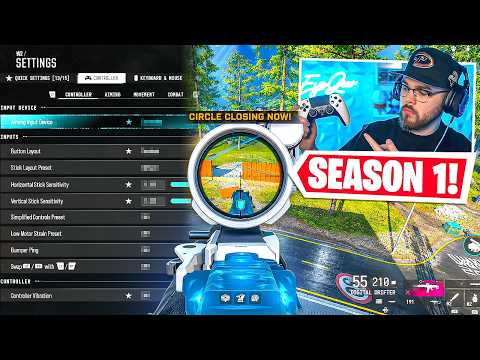
- Inputs: Button Layout Preset Tactical, Stick Layout Preset Default, horizontal and vertical stick sensitivity 1.50.
- Dead zones: left stick minimum 0 and maximum 80, right stick minimum 0 and maximum 99, both triggers 0. Raise the minimum slightly if your sticks drift.
- Aiming: Aim Down Sight Behaviour set to Hold, with vehicle, killstreak and tablet multipliers at 1.00.
- Advanced aiming: ADS Sensitivity Transition Timing Instant, Aim Response Curve Type Dynamic, ADS Sensitivity Multiplier (Focus) 0.90 and Custom Sensitivity Per Zoom on.
- Aim assist: Target Aim Assist and ADS Aim Assist both on.
- Motion sensor: off.
Movement matters even more this season, because Tactical Sprint is now default for every Operator. Dexerto suggests Tap to Slide with a Short activation delay, Automatic Airborne Mantle off, Sprint Restore on, Slide Maintains Sprint on and Parachute Automatic Behavior off. Raven cut the slide cooldown by 400 milliseconds and removed the slide-to-sprint delay, so a responsive slide setup pays off. For combat behaviors, Dexerto lists Armor Plate Behavior as Apply All, which plates you fully in one action.
The Aim Response Curve is the setting players argue about most. Dynamic feels fast at the edges of the stick; if your aim overshoots, try Standard or Linear for a week before deciding. Changing one setting at a time is the only way to know which change helped.
Console Graphics and View Settings
On PS5 and Xbox Series X|S, Dexerto's console guide focuses on clarity rather than looks. The aim is to remove anything that blurs a distant player.
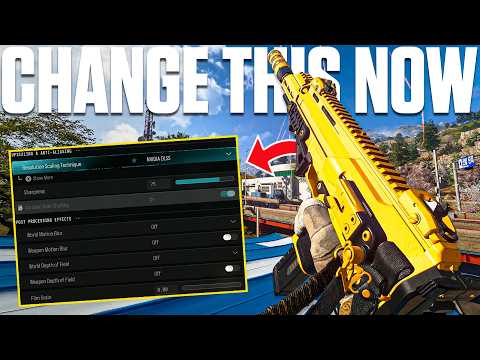
- Display: 120Hz Refresh Rate on if your TV or monitor supports it, Eco Mode Preset off, and brightness and SDR calibration to taste.
- Quality: World Motion Blur and Weapon Motion Blur off, Film Grain 0, World Depth of Field and Weapon Depth of Field off.
- View: Field of View 105, ADS Field of View Affected, 3rd Person Field of View 90, Vehicle Field of View Wide and 1st Person Camera Movement Low (50%).
A wider field of view shows more of your surroundings, which helps on Hajin's open farmland and in Zodiac's tight interiors, at the cost of making distant targets slightly smaller. If 105 feels like targets shrink too much, try 100. Raven also says Season 1 improved visibility and readability across all maps, and Zodiac in particular had visibility fixes after the beta around the Sentinel Overpass, the Old Mines and the sewer routes.
Switch 2 players have a different set of trade-offs, since resolution and frame rate are much lower on that hardware. Our Warzone on Switch 2 guide covers what is known about performance there.
PC Display Settings
Dexerto's Season 1 PC guide starts with the display basics: Display Mode set to Fullscreen Exclusive, your primary monitor selected, a Custom graphics preset, Frame Generation off, Field of View 105 and Enhanced FOV off. Fullscreen Exclusive generally gives the game the most direct control of the display, and turning off frame generation avoids the extra latency it can add in a competitive shooter.
Beyond that, PC settings depend heavily on your hardware. A practical approach is to aim for a frame rate that matches your monitor's refresh rate in busy late-game circles, not in an empty lobby. Test in a full Battle Royale match on Hajin, where the large city and weather effects are the heaviest load, and lower shadows and other expensive effects first if you drop frames. Keep textures as high as your graphics memory allows, because texture quality affects how easily you can pick out players against detailed backgrounds.
Whatever you choose, retest after big patches. Raven's notes for Season 1 already changed weapon motion, recoil visuals and screen shake, and future updates can shift performance too.
Audio Settings
Audio wins fights in Warzone. Dexerto's console guide recommends Master Game Volume 100, Gameplay Music Volume 0, Dialogue Volume 30, Effects Volume 100 and Cinematic Music Volume 0. The logic is simple: keep effects, which include footsteps and gunfire, as loud as possible, and remove music that masks them.
- Dialogue at 30: enough to hear important callouts without them drowning out steps.
- Voice chat: Dexerto leaves voice chat and proximity chat on, with Game Voice Chat set to All Lobby and volume to preference. Turn proximity chat off if it distracts you, but it can also give away nearby squads.
- Headphones: a wired headset is the most reliable way to judge direction. Dexerto also recommends a wired controller for latency and battery reasons.
Combine these with the hotfix that quieted teammate footsteps and you should hear enemies on stairs and in tunnels much more clearly than in the beta. Weather on Hajin can add rain noise late in a match, so be ready to rely more on visuals when a storm rolls in.
Common Settings Mistakes to Avoid
A few habits undo good settings faster than any slider. The first is copying a streamer's full profile in one go. Sensitivity, dead zones and response curve interact, so a setup that works with someone else's controller, grip and screen distance may feel wrong on yours. The second is leaving music on. It sounds harmless, but gameplay music sits in the same range as distant footsteps and makes direction harder to judge.
The third is chasing the highest graphics preset on a system that cannot hold a steady frame rate in late circles. A smooth, consistent image beats a sharp one that stutters when a squad pushes you. The fourth is forgetting to revisit settings after a new season. Season 1 changed movement, recoil visuals and the HUD, so settings tuned for the previous chapter of Warzone may no longer be ideal. A quick check after every major patch keeps your setup matched to the game you are actually playing.
How to Test and Fine-Tune
Activision's How to Play guide recommends building your loadout and fine-tuning your settings before you jump into a match. The best place to test is a Casual playlist, since Battle Royale Casual and Resurgence Casual let you experiment with less pressure; Dexerto suggests the same.
- Change one group of settings at a time, for example dead zones only.
- Play two or three Casual matches and note whether aiming or movement feels better or worse.
- Keep the change or revert it, then move to the next group.
- Once controls feel right, move to graphics and audio, testing in a full match rather than the menu.
Settings work best alongside the right weapons and map knowledge. Our early Season 1 meta guide lists the guns trackers rate highest, and our guides to the Hajin Battle Royale map and the Zodiac Resurgence map explain where those settings will be tested hardest.
Once Your Setup Feels Right
Good settings make the grind faster, but the grind is still long, especially with Player Level and Prestige now shared across every mode. The store's MW4 hub lists its Modern Warfare 4 services, including max weapon levels and boosting, for players who would rather spend their time playing with a finished setup than leveling from scratch. If the Prestige track is your focus, the MW4 Prestige Boost takes an account up to as far as Prestige 10, with levels 1 to 55 completed by hand for each Prestige on your own account, on PlayStation 5, Xbox Series X|S, PC or Nintendo Switch 2.
Frequently Asked Questions
What is the best FOV for Warzone?
Dexerto's Season 1 guides recommend 105 on console and PC. Drop to around 100 if distant targets feel too small.
What are the best Warzone controller settings on PS5?
A common Season 1 baseline is Tactical button layout, 1.50 stick sensitivity, low dead zones, triggers at 0, Dynamic aim response curve and aim assist on. Adjust from there.
What are the best Warzone audio settings?
Keep master and effects volume at 100, set gameplay and cinematic music to 0 and dialogue around 30, ideally with a wired headset.
Should I turn off motion blur in Warzone?
Yes for competitive play. Both world and weapon motion blur make moving targets harder to track, and Dexerto turns them off along with depth of field.
What is the Operator Skin Toggle?
A Season 1 setting that shows only Modern Warfare 4 Operator skins on other players. Your own Operator still looks the way you chose.
Why can I hear footsteps better now?
Season 1 improved footstep audio, and the 7 November hotfix lowered teammate footstep volume so enemy steps stand out.