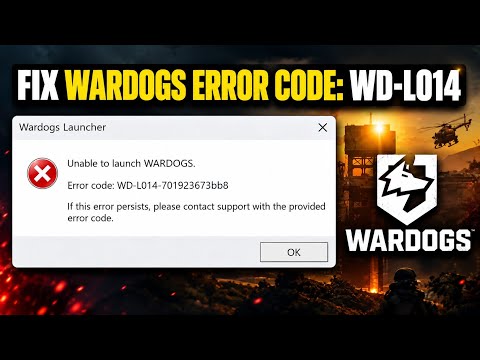
Error code WD-L014 in Wardogs is a launch failure: the game stops before it reaches the main menu. Team17 Support lists it alongside WD-L004, WD-L006, WD-L007, WD-L010 and WD-L020, and the official fixes are to verify the game files, update your GPU driver, repair the Elytra anti-cheat and restart your PC, then work through Windows security and network checks if it persists. The developer acknowledged WD-L014 on September 30 and said a fix was in the works.
We checked this against Team17 Support's pinned crash thread and a developer post on the Wardogs Steam forums, the update 0.1.2 and Season 2 patch notes, and troubleshooting coverage from TechWiser and MP1st, in November 2026.
What WD-L014 Actually Means
BULKHEAD and Team17 have not published a per-code dictionary of the WD-L errors. The pinned Crashes thread on the official Report a Problem forum, posted by Team17 Support on September 12 and last edited on September 18, groups WD-L014 with the other launch codes and gives one shared troubleshooting list for all of them. Any website that claims a single definitive cause for this exact number is going beyond what the developer has said.

What we do know is that it is a startup problem rather than a mid-match crash. On September 30, a developer named G_Medlin posted a separate thread on the Wardogs discussion board stating that the team was aware of launch issues tied to WD-L014 and WD-L018 and that fixes were in the works for both. As of November 6 we could not find a later official post confirming that a WD-L014 specific fix shipped: update 0.1.2 named only the WD-L020 crash fix, and the Season 2 notes list general stability and bug fixes without naming WD-L codes. If the error still appears on the current build, the checklist below is the right place to start.
Community troubleshooting guides commonly point at the Elytra anti-cheat. TechWiser, for example, lists a corrupted or badly installed Elytra, conflicts with background programs, and Windows Memory Integrity blocking Elytra from loading as likely triggers. Those are informed guesses, not official diagnoses, but they line up with the steps Team17 recommends.
Start With the Official Team17 Checklist
Team17 Support's list is short and ordered roughly from least to most invasive. Work through it in this order and try launching after each step, so you know which change fixed it.
- Verify the Wardogs game files through Steam (right-click the game in your Library, open Properties, then Installed Files, then Verify integrity of game files).
- Update your GPU drivers.
- Repair Elytra: open the Wardogs installation folder, find the Elytra folder, run the Elytra setup and choose Repair.
- Restart your PC after the steps above.
- If possible, connect through a mobile hotspot to rule out a network problem.
- Disable any CPU or GPU overclocking.
- Change your max FPS to 60.
- Check for Qemu Guest Agent, Dr.Web or similar software and uninstall or disable it.
- Make sure Wardogs and Elytra are not being blocked by your antivirus, firewall or Windows Security.
The restart in step four matters more than it looks. Several players report that an Elytra repair alone did not help until the PC was rebooted, which makes sense for anti-cheat components that load with Windows.
Repairing the Elytra Anti-Cheat Properly
Elytra lives in its own folder inside the game's install directory. The quickest way to reach it is through Steam: right-click Wardogs in your Library, choose Manage, then Browse local files. Open the Elytra folder, run the Elytra setup program and select Repair.

Two refinements come from troubleshooting coverage rather than Team17's own post. MP1st's write-up of the related WD-L018 error suggests running the Elytra setup as administrator before choosing Repair, then restarting and verifying the game files again. TechWiser adds that running Steam itself as administrator can help: fully exit Steam from the system tray, then relaunch it with Run as administrator before starting Wardogs.
If you took part in the closed beta in August, also check which entry you are launching. The developer distributed beta access through a separate Steam app called WARDOGS Playtest, which players pre-loaded on its own, so an old playtest install can still sit in your Library next to the full game. Launch the main Wardogs entry, and uninstall the playtest if you no longer need it so its files and its copy of the anti-cheat do not confuse matters.
Windows Security, Memory Integrity and Virtualization
If the basic checklist does not work, Team17 Support's thread moves on to Windows settings. The first is Memory Integrity, part of Core Isolation, which can stop some anti-cheat drivers from loading:
- Press Windows key and S, type Windows Security and open the app.
- Select Device security on the left-hand menu.
- Under Core isolation, click Core isolation details.
- Switch Memory integrity off.
- Restart your computer.
Team17 describes these as potential workarounds that may not work for everyone. TechWiser recommends turning Memory Integrity back on once the game launches, which is sensible, because it is a genuine security feature rather than a performance setting.
The same thread suggests two more checks. If you run a Windows Insider build, consider moving back to a standard release via Settings, Windows Update, Windows Insider Program, then Stop getting preview builds. Some players have also fixed launch errors by disabling virtualization features such as Hyper-V, Windows Sandbox, WSL2 or Virtual Machine Platform. Finally, if you use a third-party antivirus, add an exception for the game: MP1st reports that some Kaspersky users fixed WD-L018 by adding WardogsClient-Win64-Shipping.exe to the trusted applications list.
Network, Hardware and Background Apps
Not every launch error is a local software fault. Team17's suggestion to try a mobile hotspot is a quick way to rule out a router, ISP or firewall issue blocking the connection at startup. If the game launches over the hotspot but not on your home network, the problem is somewhere between your PC and the internet.
On the hardware side, confirm that you meet the minimum specification Team17 restates in the thread: 64-bit Windows 10, an Intel Core i5-8600 or AMD Ryzen 5 3500, 16 GB of RAM and an Nvidia GTX 1660 or AMD Radeon RX 590. Remove any overclock while testing, even one that is stable in other games. Our guide to the best Wardogs settings covers frame caps and graphics options once you are in.
Background programs can also interfere. TechWiser suggests closing other anti-cheat software, Discord and any active VPN from the system tray before launching. That is easy to test and easy to undo, so it is worth trying before deeper Windows changes.
Patch Days, Maintenance and a Clean Reinstall
Before tearing your PC apart, check the calendar. Wardogs servers go offline during scheduled maintenance, and the developer usually announces those windows on Steam: update 0.1.2 on September 30 took about an hour from 08:00 UTC, a security and stability hotfix on October 2 was planned for 08:00 UTC with about an hour of downtime, and Season 2 on October 15 needed roughly 90 minutes between 08:00 and 09:30 UTC. Errors that appear during one of these windows usually clear on their own once the servers return and Steam finishes downloading the update.
If you have worked through every step and the error survives several days and patches, a clean reinstall is the last resort. Uninstall Wardogs through Steam, check that the install folder is gone (delete any leftovers by hand, including the Elytra folder), restart, then reinstall. The game needs 50 GB of free space according to its Steam page, so make sure the drive has room before you start, because a download that fails partway through can leave you with a fresh set of corrupted files.
Related Codes and When to Report It
WD-L014 is one of several similar codes, and the others give useful context. WD-L020 turned out to be caused by a Windows 11 update, KB5124010, and update 0.1.2 on September 30 shipped a fix for it. WD-L018 showed up more often for some players after that same update, according to MP1st, and the developer listed it alongside WD-L014 as having a fix in progress.
If none of the steps work, report it in the official Report a Problem section of the Wardogs Steam forums, where Team17 merges crash reports into the pinned thread and says it passes them to the development team. Include your full error code with the characters after it, your Windows version and what you have already tried. It is also worth checking whether a maintenance window is underway, since launch problems around patch days are often server-side. Our Wardogs release and season timeline tracks the major updates, including the Season 3 date. Once the game runs, the next hurdle for most people is getting into the same match as their friends, which our play with friends guide covers, and if you are still deciding how to play, our role track overview is a good first read.
Once You Are Back In
A launch error can eat an evening that was meant for playing. If you return to find friends far ahead on their role tracks, the store's Wardogs section includes Steam account listings from independent sellers, typically showing levels, role progress and cash, and what is listed changes daily. For balance, the game's EULA on Steam says players must not sell or transfer an account, and it treats an account as personal to the person who made it.
Frequently Asked Questions
How do I fix WD-L014 in Wardogs?
Verify the game files in Steam, update your GPU driver, repair Elytra from the game's Elytra folder, and restart your PC. If it persists, try Team17's Windows Security and network checks.
Is WD-L014 an anti-cheat error?
The developer has not published an official definition. Community guides link it to the Elytra anti-cheat, and repairing Elytra is part of Team17's official steps.
Where is the Elytra folder?
Inside the Wardogs install directory. In Steam, right-click the game, choose Manage, then Browse local files, and open the Elytra folder.
Should I turn off Memory Integrity for Wardogs?
Team17 lists it as a possible workaround. If it helps, consider turning it back on afterward, since it is a Windows security feature.
What is the difference between WD-L014 and WD-L020?
WD-L020 was traced to Windows 11 update KB5124010 and fixed in update 0.1.2. WD-L014 has no published cause, and the developer said on September 30 that a fix was in the works.
Does a mobile hotspot fix Wardogs launch errors?
It is a diagnostic step. If the game launches on a hotspot but not at home, your home network or firewall is likely involved.