
To change the email on a PlayStation account, sign in to Account Management on the web, select Security, then Edit next to Sign-In ID (Email Address), enter the new address and save; you can also do it from the account settings on a PS5 or PS4. Sony sends a Verify Now link to the new inbox, notifies the old address, and signs you out of every device. If you have lost access to the old email, the self-service route will not work, and a PSN account email change goes through PlayStation Support's Online Assistant instead. Here is every path as of November 2026.
We checked this against PlayStation Support's sign-in ID, password reset, 2-step verification, sign-in and security pages, plus the current PlayStation Terms of Service, in November 2026.
Why the Email on Your Account Matters So Much
On PlayStation, your email address is not just a contact detail. It is your sign-in ID, the thing you type with your password on every console, and Sony uses it as the destination for almost everything important: password reset links, account recovery emails, and the PlayStation Safety notice if your account is ever suspended.

That makes the inbox the master key. Sony's own security advice is to use a strong password on your email account specifically because it can be used to reset your other accounts, and the sign-in ID page recommends keeping an up-to-date and accessible email address on file. If you are about to lose access to an old address, such as a school account, a work address or an internet provider you are leaving, change the PlayStation sign-in first, while you can still read messages sent to the old inbox.
Not sure which address is on the account right now? Sign in to Account Management and open Security: the current Sign-In ID (Email Address) is listed there, right next to the Edit button you will use to change it. On a console, the same field appears in the account settings paths described below. It is worth checking even if you think you know, because many players registered years ago with an address they no longer read.
- Password resets go to the sign-in email.
- Suspension notices from PlayStation Safety go to the sign-in email.
- Data access request files are delivered through the sign-in email.
- Under the UK and EU terms, a warning before an unused account is closed is sent there too.
Changing Your Sign-In Email on the Web
The browser route is the clearest because every option is labeled, and it works from a phone as well as a computer.
- Go to Account Management at playstation.com and sign in.
- Select Security from the sidebar.
- Click Edit next to Sign-In ID (Email Address). Sony may ask you to sign in again at this point.
- Enter the new email address and click Save.
- Open the new inbox, find the message from PlayStation and select Verify Now.
Sony does not describe any other conditions on its page beyond the address being a valid email. If the save fails, the support page suggests checking your internet connection and the PlayStation Network status page before trying again, since scheduled maintenance can block account changes.
The most common self-inflicted problem is a typo. If you mistype the new address, the Verify Now email goes nowhere and you are left waiting for a message that will never arrive. Type the address slowly, check it once more before you click Save, and send yourself a test message from another account first if the inbox is brand new. It also helps to add PlayStation's sending domain to your contacts or safe senders list so the verification does not land in spam, where Sony's pages repeatedly suggest looking when an email seems to be missing.
Changing It From a PS5 or PS4
If the console is the only screen nearby, both generations let you change the sign-in ID from their settings menus. Typing an email address with a controller is slower, but the result is identical to the web route.
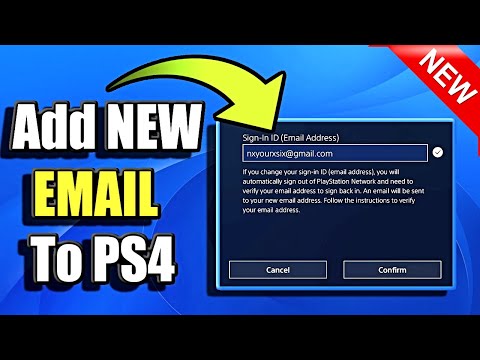
- PS5: go to Settings, then Users and Accounts, then Account, and select Sign-in ID (Email address). Enter the new address and select Confirm. You may be asked to sign in first.
- PS4: go to Settings, then Account Management, then Account Information, then Sign-In ID (Email Address). Sign in, enter the new sign-in ID and select Confirm.
Sony's sign-in ID page does not include steps for the PlayStation App, so use a browser on your phone if you are away from the console. Whichever device you use, the verification still has to be completed from the new inbox.
What Happens the Moment You Confirm
Three things happen at once. The new address receives a verification email with a Verify Now button. The old address receives an email telling it that the sign-in ID was changed. And Sony signs you out from all devices, so every console, phone and browser where you were signed in will ask for the new email and your password.
Plan for the re-sign-in. If you use 2-step verification, every console you sign back into will want a code, so keep your phone or authenticator app nearby, and know where your backup codes are in case it is not. Our guide to PlayStation backup codes explains where to view them and how to get a fresh set.
Your online ID, friends, trophies and purchases do not change. The sign-in email is separate from the name other players see, which has its own process; see our walkthrough of changing a PlayStation online ID if you want to update both.
When You No Longer Have the Old Inbox
The self-service change assumes you can still sign in, and signing in often depends on that old inbox. Sony's page lists three situations that it sends straight to the Online Assistant instead of the menus:
- "I don't remember my email address."
- "The email linked to my account was changed without my permission."
- "I don't have access to the email address anymore."
If you still know your password and can sign in, you may not need support at all: sign in normally and change the address from Security before anything forces a reset. The trouble starts when a password reset or a 2SV email is needed and the old inbox is gone. At that point support has to verify your identity, and our guide to recovering a locked PlayStation account covers what to prepare.
Before you open a ticket, try to get the old inbox back from its own provider. Most email services have a recovery process of their own using a phone number or a backup address, and regaining the inbox is often faster than proving ownership to PlayStation Support. If the old address belonged to an employer or school that has deleted it, that route is closed, and support is the only option. Either way, write down everything you remember about the account, such as the online ID, the country you picked and the console you used, before you start.
If Someone Changed the Email Without You
An email from PlayStation saying your sign-in ID changed when you did not touch it is a sign of account takeover. Act immediately, because whoever made the change now receives your reset links. If you can still sign in, change your password first, then change the sign-in ID back to an address you control, and turn on 2-step verification if it is not already on. If the attacker has locked you out completely, go straight to the Online Assistant and report that the email was changed without permission.
Once you have control again, sign in to Account Management, open Security and choose Sign Out on All Devices, which Sony only offers on the web. Then check Transaction History for purchases you did not make, and look at your passkeys and 2SV settings for anything the attacker might have added. Sony's security page also warns against sharing account details and against messages asking you to sign in through a link, which is how many takeovers start.
Picking a Good Replacement Address
Choose an inbox you expect to keep for years. Personal addresses from major providers are the usual choice, because a work, school or internet provider address can disappear when your situation changes, taking the account's recovery route with it. Turn on that email provider's own two-step sign-in, and give it a password you use nowhere else.
Think about region as well. Changing the email does not change the country or region attached to the account, which Sony fixes at creation. If you are updating details because you moved abroad, our guide to what happens when you need a different PlayStation country explains what can and cannot move with you. A new address on its own will not unlock another country's store.
Finally, avoid sharing that inbox with anyone. A shared family email or an address that a friend can read gives that person the ability to reset your password. The security page describes sharing account information as a breach of the Terms of Service, and a shared inbox amounts to the same thing.
Accounts That Come With Email Access
Some players looking at a different account care most about who controls the original email. Our PSN accounts hub includes account listings from marketplace sellers, and several list email access in their descriptions; the selection changes daily. Remember that Sony's UK and EU PlayStation Terms of Service list sharing, buying, selling, trading or transferring accounts or account details among prohibited actions, and that, as this guide shows, whoever holds the original inbox can change the sign-in again.
Frequently Asked Questions
How do I change the email on my PSN account?
On the web, sign in to Account Management, open Security, click Edit next to Sign-In ID (Email Address), enter the new address and save, then select Verify Now in the email Sony sends to the new inbox.
Can I change my PSN email without access to the old one?
If you can still sign in, yes, from Security in Account Management. If you cannot sign in and the old inbox is gone, Sony directs you to the Online Assistant.
How do I change my PlayStation email on PS5?
Open Settings, then Users and Accounts, then Account, and choose the sign-in ID option. Type the new address, select Confirm and finish verification from the new inbox.
Does changing my PSN email sign me out?
Yes. Sony signs you out from all devices when the sign-in ID changes, so you will need the new email and your password on every console.
Does the old email get notified when I change it?
Yes. Sony emails the old address to confirm the sign-in ID was changed, which helps you spot a change you did not make.
Does changing my email change my online ID?
No. The sign-in email and the online ID are separate. Your name, friends, trophies and purchases stay the same.