
If you want to know how to switch Discord accounts on mobile, the honest answer as of November 2026 is that you log out of one account in the app's Settings and log in to the other, because Discord's official Account Switcher is documented as a desktop feature that holds up to five accounts. The phone app does not have a documented one-tap switcher, so the steps below cover the mobile method, the desktop switcher, and the QR code trick that moves an account from your phone to a computer in seconds.
We checked this against Discord's Account Switcher FAQ, its log in, log out, QR Code Login and account verification Help Center articles, and a current mobile log out walkthrough, in November 2026.
What Discord Supports in November 2026
Discord's Help Center describes the Account Switcher as a tool that lets users with multiple accounts "access and switch between these accounts on desktop." The FAQ explains that you open it by clicking your avatar at the bottom left of the Discord app and choosing Switch Accounts, and that you can log into five accounts with it.
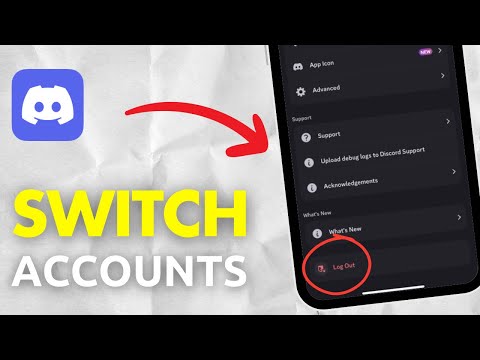
You will find third-party blogs that disagree about the phone app. Some say an Add Account option appears for a few users, others say the feature never arrived. We could not find any Discord Help Center article, patch note or blog post that documents an account switcher in the iOS or Android app, so this guide treats the mobile switcher as unavailable. If a future app update adds one, the account limit and privacy rules below will almost certainly still apply.
A few facts from the official FAQ hold no matter which device you use:
- The switcher does not show other users which accounts you are switching between.
- Some preferences reset when you switch, including appearance settings such as font scaling.
- Drafted messages are not saved when you change accounts.
- Your Privacy and Safety settings for each account stay as you set them.
Switching Accounts on Mobile, Step by Step
On iPhone and Android the process is a clean log out followed by a fresh log in. It takes under a minute once you have the second account's details ready.
- Open the Discord app and tap your profile picture in the bottom right corner.
- Tap the cogwheel in the top right corner to open Settings.
- Scroll to the very bottom of the list and tap Log Out, then confirm.
- On the login screen, enter the email address or verified phone number of the other account in the first field.
- Enter that account's password in the second field and complete any two-factor prompt.
Discord's own login article notes that phone number login only works for a number that has been verified on the account, so if the second account only has an email attached, use the email. Have your authenticator app or backup codes nearby if two-factor authentication is on; our Discord 2FA guide explains backup codes if you are locked at that step.
To make the swap less painful, store each account's login in your phone's built-in password manager, so the email and password fill in with a tap instead of being typed from memory. Give each account a clearly different avatar too. When two accounts share similar names, a distinct picture in the bottom right corner is the fastest way to confirm you landed in the right one before you start chatting.
Think about why you have the second account as well. A moderator keeping a separate staff identity, a creator running a brand account, or a parent testing settings for a family member all have good reasons. If you swap several times a day, though, the phone plus computer setup described below will save you a lot of retyping.
Because every swap is a full log out, you will lose push notifications for whichever account is signed out. If you need alerts from both accounts at once, keep one on your phone and the other on a computer.
Using the Desktop Account Switcher
On Windows, macOS, Linux or the browser, the switcher saves you from typing passwords every time. Here is how to set it up.

- Click your avatar at the bottom left of the app.
- Choose Switch Accounts.
- Add the second account from that menu by logging in with its email or verified phone number and password.
- Repeat for up to five accounts in total.
- To change accounts later, open the same menu and pick the one you want.
Each account keeps its own servers, friends and settings, but remember the two side effects from the FAQ: unsent drafts disappear and some appearance preferences reset. If you write long messages, send or copy them before you switch.
When an account is not logging in at all, the problem may not be on your end. Our guide to checking whether Discord is down right now shows how to read Discord's status page before you start resetting passwords.
Moving Between Phone and Computer With QR Login
A practical way to use two accounts without constant logging out is to keep one account on your phone and use your phone to sign the other device in quickly. Discord's QR Code Login works in one direction: from a logged-in mobile app to a desktop or browser login screen.
- On the computer, open the Discord app or discord.com/login so the QR code appears.
- On your phone, tap your profile picture, then the cogwheel, and find Scan QR Code under Account Settings.
- Point the camera at the code. Codes expire after two minutes, so refresh the page if yours has timed out.
- Tap Log in on the phone to approve.
The computer is now signed in to the same account as your phone. From there you can add more accounts through the desktop switcher, which gives you a stable setup: one account on the phone, up to five on the computer.
Discord's safety advice here is important. Never approve a QR login that you did not generate yourself. If someone sends you a QR code and asks you to scan it, they are trying to log into your account, and you should tap Cancel. If you approved one by mistake, change your password, which logs out every device.
Keeping Each Account Secure When You Juggle Several
Discord built the switcher for people who have more than one account, but each account still needs its own protection. A few habits make it much easier:
- Verify every account. Discord's Getting Started on Mobile article says an unverified new account gets five random digits added to its username after seven days, and verifying your email is how you recover the account later.
- Use separate, strong passwords and turn on two-factor authentication for each account.
- Review your devices. In Settings, the Devices page lets you sign out of every known device at once if you lose track of where an account is logged in.
- Check which account you are on before posting, reporting or buying anything. The avatar in the corner is easy to miss; copying the account's numeric ID is a precise check, and our guide to finding a Discord user ID explains how.
Also remember that multiple accounts are treated as connected when it counts. The Account Switcher FAQ states that if someone breaks the Terms or Community Guidelines, Trust and Safety may act on any account it can determine belongs to that user, including accounts in the switcher, and the more severe the violation, the more likely the action extends across accounts.
Mistakes and Workarounds to Avoid
Search results for this topic are full of shortcuts, and several of them cause more trouble than a quick log out.
- Modified or cloned apps. Discord's account verification article lists "used third party clients or modifications to Discord" as one of the behaviors that can trigger a Verification Required check. App cloners and unofficial clients ask you to type your password into software Discord does not make.
- Token logins. Any tool that asks for your account token instead of your password is asking for full access to the account. Discord says it will never ask for your password or token.
- Rapid hopping between servers. Joining many servers in a short time and messaging lots of non-friends are both listed by Discord as signals that can trigger verification. Switching accounts to do either at scale can get every account limited, which our explainer on a Discord account flagged for spam covers in detail.
- Sharing one account between people. Logging a friend into your account on their phone so they can switch to it is still account sharing, and it hands them your sessions.
The official methods are slower than a one-tap switcher would be, but they keep your accounts in your hands.
If You Are Comparing Older Accounts
Some people managing several profiles start wondering whether an older account would serve them better than a fresh second one. The store's Discord hub includes account listings from marketplace sellers, and what is listed changes from day to day. Know before you look that Discord's Terms of Service ask users not to license, sell, lend or transfer an account or username without Discord's prior written approval. Our article on what makes a Discord account worth more explains the age, badge and username factors people look at, and why an account's history stays with it.
Frequently Asked Questions
Does the Discord mobile app have an account switcher?
Discord documents the Account Switcher only for desktop. On iPhone and Android, log out from the bottom of Settings and log in to the other account.
How many accounts can I add to the Account Switcher?
Discord's FAQ says you can log into five accounts using the Account Switcher.
Can other people see that I switch accounts?
No. Discord says the switcher does not show other users which accounts you are switching between.
Why did my draft message disappear after switching?
Drafted messages are not stored when you switch accounts. Send or copy them first.
Can I use two Discord accounts on one phone at the same time?
Not in the official app. A practical setup is one account on the phone and the others on a computer through the desktop switcher.
How do I log in on a computer without typing my password?
Use QR Code Login: open Settings on your phone, tap Scan QR Code and scan the code on the desktop or browser login screen, then approve.