
A Discord server template is a shareable link that copies a server's categories, channels, roles and permissions into a brand-new server, without any of the messages or members. You create one from Server Settings, then Server Templates, on desktop or in a browser (you need to own the server or have the Manage Server permission), and anyone who opens the link can preview the layout and spin up their own copy in a few clicks.
We checked this against Discord's Server Templates and server creation Help Center articles, its Discord Server Setup Guide, and the Guild Template section of Discord's developer documentation, in November 2026.
What a Server Template Copies
Discord's Help Center sums templates up in one line: they "clone existing categories, channels, roles, and permissions to help you create a new server easily." The point is structure. A template gives a new server the same skeleton as the original, so you skip the tedious part of building channels and permission rules by hand.

Discord's developer documentation shows exactly what the snapshot holds. A template stores a partial copy of the source server that includes its name, description, verification level, default notification setting, explicit content filter, preferred locale, AFK timeout, roles with their permissions and colors, channels with their topics and permission overwrites, and which channel is the system channel. Each template also records its creator's user ID and a usage count showing how many times it has been used.
Just as important is what you will not get:
- Messages and members. The new server starts empty, with you as the owner.
- Community channel types. Discord notes that Forum, Announcement and Stage channels are community-enabled types that are not transferable and are not included in templates.
- Everything outside the snapshot. Custom emoji, stickers, soundboard sounds, bots and boost perks are not part of the template object, so plan to add them yourself. Our Discord soundboard guide covers uploading sounds to the new server, and boost levels start over from zero.
How to Create a Server Template
Creating a template is quick, but Discord limits where and who can do it.
- Use the desktop app or a browser. Discord says creating templates is not available in the mobile app.
- Make sure you are the server owner or have a role with the Manage Server permission.
- Open Server Settings from the dropdown next to the server name, or by right-clicking the server name.
- Select the Server Templates tab.
- Give the template a name and a short description. Discord's API documentation allows names of 1 to 100 characters and descriptions of up to 120 characters.
- Press Generate Template to create the link, then press Copy to share it.
Before you generate, tidy the source server. Delete test channels, rename anything with an inside joke, and check that each role's permissions are what you want a stranger to inherit. Whatever is in the server at the moment you generate the link is what everyone using the template will get.
Using a Template to Build a New Server
There are two ways to start from a template: Discord's built-in options and a link someone shares with you.
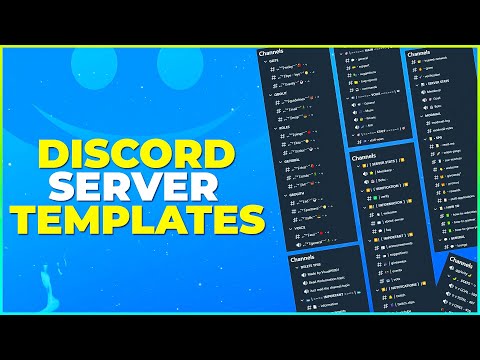
Built-in templates: when you press the Add a Server button in the server list, Discord shows a window where you can create your own server from scratch or choose a template, and Discord's setup guide lists the follow-up choice between "For a club or community" and "For me and my friends" when you build your own. If you have many servers, the Add a Server icon may be hidden at the bottom of the list, so scroll down to find it.
Shared template links: when someone shares a template in chat, it appears as a card. Opening it shows a preview of the channels and roles before anything is created. From the preview window you can rename the server and upload a new server image. Press Create and Discord builds the server with all the preset channels, roles and permissions.
When adding your icon, Discord's server creation article notes that icons must be at least 128 by 128 pixels, and recommends cropping larger images in multiples of 128. Name and icon can be changed later at any time, so do not let them hold you up.
Keeping a Template Up to Date
Templates are a snapshot, not a live mirror. Discord says they do not update automatically when you change the original server's setup, so anyone using an unsynced template gets the old layout.
- Sync: after you change the source server, a notification appears by the server's name. Go to Server Settings, then Server Templates, and press Sync Template to update the snapshot. Discord's API documentation calls a template with unsynced changes "dirty."
- Delete: go to Server Settings, then Server Templates, and press Delete Template.
- Broken links: if the creator deletes the template, the link stops working for everyone. Each server created from a template is its own separate server, so deleting the link is about stopping new copies, not undoing old ones.
If you publish a template for others, sync it after every meaningful change and keep a note of what changed, since people who used an earlier version will not receive updates.
Fixing the 1,000 Permission Overwrites Error
Large or heavily customized servers sometimes cannot generate a template at all and see the error "Maximum number of channel permission overwrites reached (1000)." Discord explains that this means the server has more than 1,000 role permission overwrites, which are permissions set channel by channel rather than in Server Settings.
To fix it, reduce the number of overwrites before trying again. A few ways to do that without losing your setup:
- Move common permissions up to the role level in Server Settings, so they apply everywhere without per-channel rules.
- Group channels into categories and set permissions on the category, then let channels inherit them instead of repeating the same rules.
- Remove overwrites for roles that no longer exist or no longer need special access.
Discord warns that the limit applies retroactively, so keep an eye on overwrites as the server grows if you want your template to stay shareable.
Designing a Template Worth Sharing
A good template saves the next owner hours, so it is worth building with them in mind. Start with a small number of clearly named categories, such as information, general chat, voice and events, and put the rules and announcement content where newcomers will see it first. Keep the role list short and ordered from most to least powerful, with permissions that make sense out of the box.
Safety settings travel with the template, which is a big advantage. Because the snapshot includes the verification level and explicit content filter, a template built with sensible defaults gives every new server a safer starting point. Our guide to Discord verification levels and the account too new message explains which level fits which kind of community.
Finally, remember the features a template cannot carry. If your design depends on forum or stage channels, note in the description that the new owner should enable Community and add them. And because each template records its creator's user ID, which you can read about in our guide to Discord account IDs, publish templates from the account you want credited. If a template link will not load for anyone at all, check our guide on whether Discord is down right now before rebuilding it.
A Setup Checklist After You Create the Server
Because a template only carries structure, the first hour after pressing Create decides how polished the new server feels. Work through these in order:
- Decide on the server type. Discord's setup guide explains that Community servers get extra tools such as Server Insights, Raid Protection, rules and onboarding, a welcome screen and a path to Server Discovery. Enable Community first if you need forum or stage channels, since templates cannot bring those across.
- Add your rules. With Community on, Rules Screening asks new members to accept your rules before they can talk, react or DM other members. Discord allows a maximum of 16 server rules.
- Set up onboarding. Community Onboarding lets you pick default channels for every newcomer and write customization questions that hand out roles and channels based on the answers.
- Turn on AutoMod. Discord's raid protection guide recommends AutoMod's mention spam rule and custom keyword rules as a first line of defense.
- Create invites with limits. The setup guide lists temporary invites that expire after a set time or number of uses alongside permanent ones, and suggests using never-expiring links with caution.
- Re-add the extras. Upload emoji, stickers and sounds, invite your bots and, if you want more slots, read our guide to Discord server boost levels.
Doing these before you invite anyone means the first members arrive to a finished space rather than a half-built one.
Starting Fresh With a New Server
A template handles the server; the account that owns it is up to you. The store's Discord hub hosts account listings from marketplace sellers, with stock that changes daily, for readers curious about older accounts. Discord's Terms of Service, however, say you agree not to license, sell, lend or transfer your account or username without its prior written approval, so any server you build is best owned by an account that is yours alone.
Frequently Asked Questions
Can I make a Discord server template on mobile?
No. Discord says creating templates only works in the desktop app or a browser.
Do server templates copy messages or emoji?
No. Templates copy channels, categories, roles, permissions and certain settings. Messages, members and emoji are not included.
Why does my template not show my latest changes?
Templates do not update automatically. Open Server Templates in Server Settings and press Sync Template.
Why are forum channels missing from my template?
Forum, Announcement and Stage channels are community-enabled types that Discord does not include in templates.
Who can create a server template?
The server owner, or anyone with a role that has the Manage Server permission.
What happens if a template is deleted?
The link stops working, so nobody new can use it. Share a fresh link if you want people to keep building from your layout.