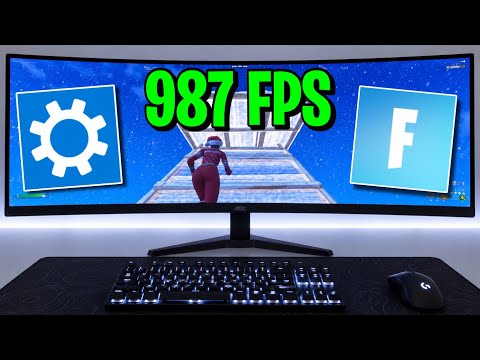
Settings are the cheapest upgrade in Fortnite. Before you spend money on a mouse or hours on aim trainers, a good configuration can raise your frame rate, make enemies easier to spot, and tighten your input response. The goal of a competitive setup is not a beautiful game; it is a fast, clear, consistent one that lets your hands do what your brain decides.
Menu names and available options change between patches and platforms, so this guide explains the reasoning behind each category rather than reading out exact values that will drift. I cross-checked the general approach against prosettings-style reference resources, the r/FortniteCompetitive community, and PC Gamer and Mobalytics coverage, all checked in October 2026. Apply the logic and set the specific numbers in your own menu.
Prioritize frame rate above all
In a fast shooter, frame rate is king. A higher and more stable FPS means smoother tracking, lower input lag, and a real competitive edge. On PC that means choosing Performance mode if your hardware is modest, turning most visual-quality options to their lowest setting, and disabling the expensive effects that tank your frames without helping you see enemies. Shadows, motion blur, and heavy post-processing are the usual culprits: they cost performance and can actively hide opponents, so turn them off.
On console, use whatever performance or high-FPS display mode your platform offers so the game targets a higher frame rate over visual fidelity. The trade is that the game looks simpler, but simpler is exactly what you want when you are trying to pick a moving player out of a cluttered scene.
It is worth stressing that frame-rate stability matters as much as the peak number. A game that runs at a high rate but stutters when a fight breaks out is worse than one that holds a slightly lower rate rock-steady, because the stutters happen at exactly the worst moment. When you tune, watch your frame time during busy moments like late-game build fights, not just while standing in a quiet field, and lower whatever setting causes the dips even if your average looks fine.

It helps to know which specific options give back the most frames for the least visual cost, because not all settings are equal. View distance, effects quality, and post-processing tend to be expensive and offer little competitive benefit, so they are the first to drop. Textures are comparatively cheap on most hardware and can often stay higher without hurting your frame rate. The goal is not to make everything ugly on principle but to spend your hardware budget where it buys performance and visibility, and to leave it anywhere that costs you nothing. A few minutes experimenting with one setting at a time, watching your frame counter, teaches you your own machine's bottlenecks better than any generic list.
Set your display mode and resolution correctly
On PC, play in exclusive fullscreen rather than windowed or borderless when the option is available, because fullscreen generally delivers the lowest input latency. Match the game's resolution to your monitor's native resolution and your frame-rate cap to your monitor's refresh rate; there is no benefit to rendering frames your display cannot show, and an uncapped rate can introduce its own problems. If your hardware struggles, lowering the 3D resolution scale is a smart way to reclaim frames while keeping the user interface crisp.
Make sure your monitor is actually running at its full refresh rate in your operating system's display settings, too. It is surprisingly common for a high-refresh monitor to sit at a default lower rate, quietly wasting the whole point of the hardware. Spend two minutes confirming the refresh rate in your display control panel before you blame the game, because no in-game setting can overcome a monitor that the operating system is driving at a fraction of its capability.
Tune settings for visibility, not beauty
After frame rate, visibility is the thing that wins fights. Many of the settings that make Fortnite look lush also make it harder to read. Turn off motion blur so moving targets stay sharp. Keep shadows low or off so enemies are not hidden in dark patches and so you are not fooled by shadow movement. Favor a clean, high-contrast image over a cinematic one. The ideal is a scene where a player model pops against the environment instantly, with nothing fancy getting in the way of that split-second read.

Audio counts as visibility too. Fortnite gives you a lot of information through sound, from footsteps to chest audio to build placement. Use a good headset, enable any sound-visualization or 3D audio option you find helpful, and learn to act on what you hear. Many players who think they have a reaction problem actually have an audio-awareness problem.
The visualize-sound-effects option deserves special mention, because it draws on-screen indicators for important audio cues like footsteps and gunfire direction. Some competitive players swear by it for the extra information, while others find it cluttered. Try it for a few sessions and keep it only if it genuinely helps you react, rather than adopting it because someone told you to. The right visibility setup is the one that makes the information you need jump out while hiding the noise you do not.
Do not overlook the settings outside the game that feed into it. Driver-level options, background applications eating your frame rate, and power-saving modes on a laptop can all quietly undercut an otherwise perfect in-game configuration. Make sure your graphics drivers are current, close the heavy background programs before a session, and confirm your machine is running in a performance power profile rather than a battery-saving one. None of this is glamorous, but a game tuned to perfection still stutters if the system underneath it is throttled, and these checks cost you nothing once you make them a habit at the start of a serious session.
Dial in sensitivity and input
Sensitivity is personal, and chasing someone else's exact numbers is a mistake because it depends on your mouse DPI or controller, your grip, and your reflexes. The right approach is to pick a sensitivity that lets you make a full turn comfortably while still landing precise shots, then leave it alone long enough to build muscle memory. Constantly changing sensitivity is one of the most common reasons players never develop consistent aim.
On controller, spend time in the advanced look settings separating your build and edit sensitivities from your combat sensitivity, since you often want to build faster than you aim. On mouse and keyboard, make sure polling and any in-game acceleration options are set so that the same physical movement always produces the same in-game result. Consistency is the entire goal, and the fastest way to sabotage it is to tinker with your sensitivity every time you have a bad game. Give any change at least a week before you judge it.
One setting that trips up competitive players more than any other is the field of view and aspect handling, so understand what your platform allows before you fiddle. Some displays and modes change how much of the world you see or how stretched it appears, and while a wider view can help spatial awareness, chasing a non-standard look you saw in a video can leave your game feeling wrong and your aim inconsistent. The safe default is to play at your monitor's native aspect and a standard view, change only one thing at a time, and keep a setting only if it genuinely helps you see and react better rather than because someone claimed it was a pro secret.
Keybinds and quality-of-life
Good binds are part of your settings even though they live in a different menu. Put your builds and edits on keys you can reach without moving your hand off movement, enable features like edit-on-release or confirm-edit-on-release if they suit your style, and turn on any quality-of-life toggles that reduce friction, such as auto-material-swap or preferred item slots. We cover this in depth in our dedicated guide to the best Fortnite keybinds, and the related edit settings guide explains how to make editing feel instant.
Do not overlook the smaller toggles either. Options that control item pickup behavior, confirmation prompts, and how your weapons auto-equip can each shave a fraction of a second off a routine action, and those fractions compound over a match. Go through every settings tab once, deliberately, and ask of each option whether it is helping you play faster and see better, or just sitting at its default. A single focused pass through the menus is worth more than any single flashy tweak.
Hardware, accounts, and getting set up
Settings get you most of the way, and the rest is practice. If you want to skip straight to playing on a well-stocked account rather than grinding from zero, the store is upfront about what it sells. The Fortnite Starter Pack bundle is a simple way to grab V-Bucks and cosmetics at a set price, and the Fortnite accounts and services page lists loaded accounts if you would rather start with a full locker. These affect what you own, not how you play, so tune your settings and then put in the reps regardless. Our guide on how to get better at Fortnite covers the practice side.
Frequently Asked Questions
What is the most important Fortnite setting?
Frame rate. Prioritize a high, stable FPS over visual quality, because it improves tracking, lowers input lag, and makes enemies easier to track in a fast shooter.
Should I turn off shadows and motion blur?
Yes. Both cost performance and can hide or obscure enemies. Turning them off gives you a cleaner, higher-contrast image where player models stand out.
What sensitivity should I use?
There is no universal number. Pick a sensitivity that lets you turn quickly while still landing precise shots, then keep it fixed long enough to build real muscle memory.
Does fullscreen matter on PC?
Yes. Exclusive fullscreen generally gives the lowest input latency. Also match your resolution to native and your frame cap to your monitor's refresh rate.
Are audio settings really part of a good setup?
Absolutely. Fortnite conveys huge amounts of information through sound. A good headset and 3D or visual audio options turn footsteps and chest noise into a real advantage.
Why is my high-refresh monitor not feeling smooth?
It may be running below its maximum refresh rate in your operating system's display settings, and your in-game frame cap may be set too low. Check both so the hardware is actually used.